
Depending on whether you have a single Kuali product or multiple it's easy to navigate around Kuali to achieve your desired goals. Below we walk you through navigating the Kuali system and how to easily find, organize, and access your products or apps.
Product Page Overview
When you login to Kuali you'll see a page like the below (this is an example from Kuali Build):
Header Options
Along the top of the page you'll see the below options:
-
Suite Switcher: If you have more than one product in Kuali you will have an option to switch between product suites in the top lefthand corner via the Suite switcher:
- Suite Menu: The three dot kabab menu will take you to Suite Menu and the options available are based on the level of access you have in the system (i.e. System Admin vs end user). More information can be found in the Suite Menu Overview article.
- Action List: This is where you can find documents that require your action (Approve, Acknowledge, or complete a Task). More information can be found in the Where Can I find the Forms I need to Approve (Action List)? article.
- My Documents: See all the documents you've initiated/saved or submitted in the system. More information can be found in the Where Can I See Forms I've Submitted or Saved (aka My Documents)? article.
- Search: Allows you to search or narrow down the app/product tiles displayed on the page.
- What's New?: Lets you see what new functionality or improvements we've released - you can also subscribe to updates to be alerted immediately of any new post. More information can be found in the Using the What's New Section article.
- Account Icon: This is where you can update your personal account settings in Kuali - more information can be found in the User Settings article.
Left Menu Navigation
Along the left navigation you can narrow down the apps/products displayed based on different criteria or spaces:
- All Apps: All apps you have access to (either created by you or shared with you) will display here.
-
Favorites: If you've favorited an app (via the heart icon in the top left corner of the app/product tile) then it will display here. To favorite or unfavorite an app/product simple select or unselect the heart icon on the tile:
- My Apps: All apps or products you've created will display here.
- Shared with me: Any app or product that you haven't created but was shared by another user with you will display here.
- Home: The Home option is only applicable to Kuali Build. This is the top level default space where all apps will go if no Spaces are configured or you haven't intentionally published an app in a given Space.
- Spaces: If you have been given access to a Space or an app/product within a Space those spaces will be listed here by the configured name. In the above screenshot the 'College of Business', College of Medicine', 'College of Science', etc. are all Spaces. Enterprise customers or those that have gotten a Distributed Management add on have the ability to configure specific Spaces where apps can live. System or Space Administrators can then create separate spaces to organize apps or products and share with the appropriate end users (more information can be found in the Spaces article).
Note: To change the sort of the listed apps or products you can select the menu option on the page you're actively on to select the Sort By option. This will then allow you to sort all apps/products on that page by either Created Date or Alphabetically (the default selection is Created Date):
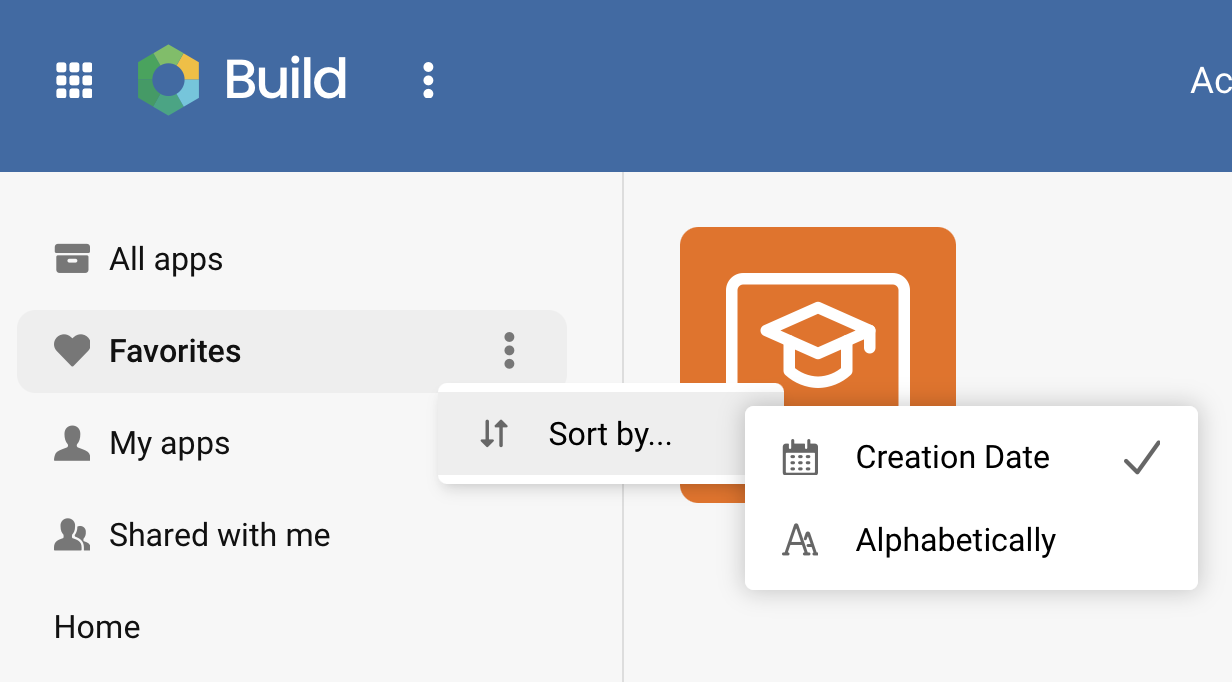
If you select Alphabetically each category of tiles (Products, Apps, Links) will change order to match the selected option. The browser session will store which selection was made and when a user returns to that space it will continue to display their desired sort. If they login in a different browser it will display the default sort order.
If you select Alphabetically each category of tiles (Products, Apps, Links) will change order to match the selected option. The browser session will store which selection was made and when a user returns to that space it will continue to display their desired sort. If they login in a different browser it will display the default sort order.
Comments
0 comments
Article is closed for comments.